How to Back Up HubSpot CRM: Your Complete Options Guide
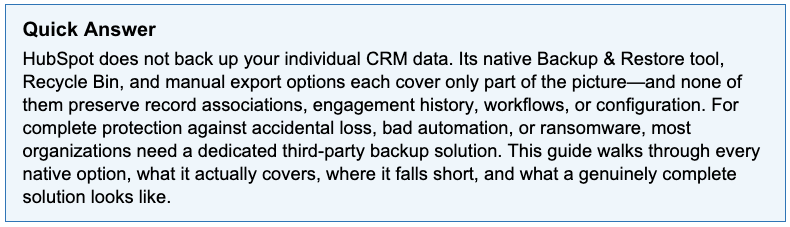
A misconfigured workflow runs overnight. By morning, 12,000 contact records have the wrong lifecycle stage, deal owners are scrambled across the pipeline, and nobody notices for three weeks until a quarterly report doesn’t add up. There’s no undo button for this. And HubSpot’s Recycle Bin, which most teams assume is their safety net, doesn’t even apply here, because nothing was deleted. The data is still there. It’s just wrong, and nobody can say what it used to be.
This is the gap that most HubSpot users don’t discover until it’s too late.
For more than 200,000 businesses worldwide, HubSpot isn’t just a CRM, it’s the nerve center of the business, connecting teams across marketing, sales, and service and playing a central role in customer relationships. It integrates deeply into daily operations. But that depth of integration also means that when something goes wrong with the data inside it, the consequences ripple everywhere at once.
So here’s the question worth sitting with: if your HubSpot data were lost, corrupted, or deliberately altered tomorrow, what would actually bring it back?
The Shared Responsibility Model
The honest starting point is this: HubSpot is responsible for keeping the platform running. It is not responsible for recovering your data. This is known as the Shared Responsibility Model, and it isn’t a vague industry norm, it’s written into HubSpot’s own Terms of Service, which limit HubSpot’s liability for loss of data.
That’s not fine print to skim past. It’s a contractual reality that places the responsibility for your data — its safety, its recoverability, its integrity — squarely on your organization, not your vendor.
The stakes are not hypothetical. The IBM Cost of a Data Breach Report 2024 placed the global average cost of a data breach at a record $4.88 million, a 10% increase from the prior year. Meanwhile, Obsidian Security’s SaaS Security Threat Report documented a 300% surge in SaaS-specific breaches in 2024. Gartner predicts that by 2028, 75% of enterprises will treat SaaS backup as a critical requirement, up from just 15% in 2024. That gap between awareness and action is exactly where data loss happens.
What makes a ransomware attack successful isn't just the breach — it's the leverage. Attackers gain that leverage by eliminating your ability to recover without them. Before they ever surface with a ransom demand, sophisticated threat actors have already spent weeks inside your environment quietly dismantling your recovery options. HubSpot's native tools — the recycle bin, the activity log, the 7-day history — are exactly what they target, because they live inside the same environment being compromised. The tactic is deliberate: bad actors know most organizations rely on 30-day rolling platform logs, so they destroy those first before triggering their ransom demand. An independent, external backup breaks that equation entirely. It sits outside the blast radius. It can't be touched by someone who only has access to your HubSpot environment. And it's the one thing that turns a potential catastrophe into a manageable recovery.
How You Lose Your HubSpot Data
Scenario A: HubSpot Suffers a System Failure
If HubSpot experiences a major server crash, data corruption, or a regional data center disaster, HubSpot is fully responsible for recovery.
The Localized Backup Role: HubSpot will use the hourly snapshots and daily backups stored safely within that same region to rebuild the platform.The Result: Your data is restored back to the system up to the point of their last clean backup. Because it is a “localized” backup, your data never crosses international borders during this emergency recovery process, keeping you compliant with local privacy laws (e.g. GDPR).
The Critical Distinction: It is essential to understand that these localized backups exist for one purpose only: to restore HubSpot’s platform infrastructure and get the service back online. They are not designed, and cannot be used for individual customer data recovery. If your team’s contacts, deals, workflows, or records are lost, corrupted, or accidentally deleted, HubSpot’s internal system backups will not retrieve them. That responsibility falls entirely on you.
The Recycle Bin: HubSpot provides a built-in recycle bin where deleted records sit for 90 days (about 3 months). You can manually restore them from there.
The Catch: There are many limitations to the recycle bin, which we will get into later in this guide. Past the 90 days your deleted data is unrecoverable. As well, if you restore records from HubSpot’s recycle bin, they often lose their “relational context” — meaning a contact might come back, but its historical email timelines, log notes, and associations to specific deals or companies may be permanently broken.
We’ll cover exactly why the Recycle Bin falls short in more detail below.
Scenario B: The Customer Accidentally Deletes Data
If a user on your team accidentally deletes contacts, workflows, or deals, HubSpot’s infrastructure backups will not help you. HubSpot’s native system backups are for platform-wide disasters, not for reverting individual user mistakes.
The Recycle Bin: HubSpot provides a built-in recycle bin where deleted records sit for 90 days. A Super Admin can manually restore them during that window.
The catch: As we’ll cover in detail below, the Recycle Bin has significant limitations. Past the 90-day window, deleted data is gone permanently. And even within the window, restored records often lose their relational context — a contact might come back, but its email history, notes, and associations to specific deals or companies may be permanently broken.
Scenario C: Ransomware Attackers Target Native Backups First
Most organizations think about ransomware as a data encryption problem: an attacker locks your files, then demands payment for the key. That model is outdated and it’s the reason so many backup strategies fail at the exact moment they’re needed most.
According to Google Cloud’s Cloud Threat Horizons Report, in late 2025, every major ransomware gang was observed deleting logs, core dumps, and backups specifically to hinder recovery and forensic investigation. This isn’t an edge case reserved for sophisticated nation-state attacks on Fortune 500 companies. Mandiant’s incident response teams report that financially motivated threat groups are increasingly targeting backup infrastructure as a core part of the attack itself, not a side effect of it.
The logic is straightforward, and Google’s own researchers state it plainly: if an organization cannot restore its systems independently (outside of the SaaS platrform), it has little choice but to consider paying a ransom. Backup destruction isn’t incidental damage, it’s the leverage mechanism. Attackers are disabling or deleting cloud-hosted backups early in the attack chain specifically to maximize that leverage, a pattern researchers observed in recent HellCat, Akira, and ALPHV/BlackCat intrusions, where even immutable backup copies were located and wiped before the extortion notice ever arrived.
What this means for your HubSpot data: A 90-day Recycle Bin or a 14-day backup file isn’t a defence against this pattern — it’s a target. If an attacker who compromises your HubSpot admin credentials can also see and access your backup data, they can delete it just as easily as they delete your live records. A “backup” that lives inside the same authentication boundary as the system it’s protecting isn’t really a backup chain at all. It’s a single point of failure with an extra step.
This is precisely why backup data stored independently from your production environment, with its own access controls, its own authentication, and ideally its own infrastructure, is more than just a nice-to-have feature on a checklist. It’s the entire point. The question isn’t just “do you have a backup?” It’s “could the same person who compromised your CRM also delete your backup of it?” If the answer is yes, you don’t have a recovery plan. You have a delayed encryption attack with extra steps.
This guide covers every available option for backing up HubSpot: the native CRM Backup Tool, the Recycle Bin, manual CSV exports, and what a genuinely complete third-party solution needs to do. Each one gets an honest, step-by-step assessment of what it actually does, what it misses, and what real HubSpot data protection looks like in practice. Whether you’re an IT leader evaluating risk posture, a Sales or Marketing leader protecting pipeline data, or an MSP managing HubSpot on behalf of clients, you’ll leave with a clear, actionable picture.
HubSpot’s Native CRM Backup Tool: What It Does (and What It Doesn’t Do)
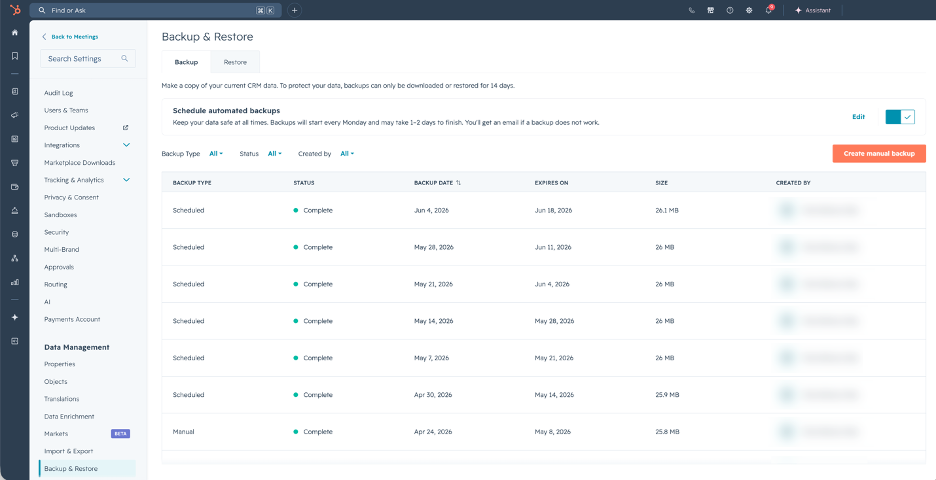
HubSpot’s built-in Backup & Restore feature is the most direct answer to the question of how to back up HubSpot data. Released to give admins a degree of self-service recovery capability, it’s a meaningful step. For many teams, it’s the first (and only) tool in their data protection toolkit. Understanding exactly what it covers, how to use it, and where it stops is essential before you can make an informed decision about your overall strategy.
What the Native Backup Tool Covers
According to HubSpot’s official Backup & Restore documentation, the native tool exports the following CRM objects: contacts, companies, deals, tickets, custom objects, products, calls, conversations, and tasks. These are delivered as CSV files within a downloadable .zip archive. For teams running lean operations on smaller datasets, this covers the most referenced record types.
How to Create a Manual Backup in HubSpot
The process itself is straightforward. Here’s the step-by-step:
- In your HubSpot account, click the Settings icon in the top navigation bar.
- In the left sidebar, under Data management, click Backup & Restore.
- Click Create manual backup, then confirm by clicking Create backup.
- You’ll receive a notification when the backup is ready. Download the file within 14 days or it will no longer be accessible.
That 14-day download window is the first limitation worth pausing on. If no one on your team notices the notification, or if the admin responsible for downloads is on leave, that backup disappears. Permanently.
Subscription Tier Matters Significantly
The native backup tool’s capabilities are gated by your HubSpot subscription level, and this is a detail that surprises many organizations mid-evaluation:
- Starter and Professional tiers: Manual backup only, with a maximum frequency of once per week. Someone on your team must remember to initiate it.
- Enterprise tier only: Recurring automated backups are available on weekly or bi-weekly schedules. This is the only tier where the backup tool approaches something resembling an automated safety net.
- Super Admin permissions required across all tiers to initiate or schedule backups.
For the vast majority of HubSpot users on Starter or Professional, there is no automated backup. There is only a manual button that someone has to click, every week, without fail.
The Critical Limitations You Need to Understand
Here is where honest assessment matters most. The native backup tool has several gaps that disqualify it as a standalone data protection strategy for most organizations:
Associations between records are not included. The relationship between a contact and the deal they’re attached to, or between a company and its associated tickets, is not preserved in the export. What you get are flat CSV files of individual objects, not the relational structure that makes your CRM data meaningful. Importing those CSVs back into a fresh HubSpot environment does not restore your CRM; it creates a set of disconnected records that must be manually re-linked.
Activity and engagement history are not included. Email exchanges, call logs, meeting notes, and task history are all absent from the backup. This is the contextual layer that tells your team the story of every customer relationship, and it simply isn’t there.
Workflows, forms, pipeline stages, templates, reports, and settings are not backed up. The configuration of your HubSpot environment, including the automation logic, the deal stages, the report definitions, and the email templates, is completely outside the scope of the native backup tool. If your HubSpot configuration were lost or corrupted, the native backup would give you raw record data with no surrounding structure.
The backup file expires in 14 days. If you run a backup but don’t download it in time, it’s gone. There is no long-term archive, no retention policy, and no compliance-grade storage.
Changes made during processing may not be captured. If records are updated while the backup is running, which is likely in any active CRM, those changes may not appear in the exported file. The backup is a best-effort snapshot, not a guaranteed point-in-time capture.
The native backup tool is a useful first layer of awareness, not a complete data recovery solution. It gives you something, but for most organizations, that something has critical gaps. For a deeper look at HubSpot backup strategy, the SaaSAssure HubSpot Backup blog offers additional context worth reading.
The native backup tool gives you a starting point. But HubSpot also has a second built-in safeguard that many users rely on without fully understanding its limits: the Recycle Bin.
HubSpot’s Recycle Bin: A Safety Net, Not a Backup
Ask most HubSpot users what happens when they accidentally delete a contact, and they’ll answer with some version of “it goes to the Recycle Bin.” They’re right, and that reassurance creates a false sense of security that leaves organizations dangerously exposed to data loss scenarios that the Recycle Bin simply cannot address. Understanding the precise boundaries of this feature is essential for preventing HubSpot data loss.
How HubSpot’s Recycle Bin Works
When a record, such as a contact, company, deal, ticket, or custom object, is deleted in HubSpot, it enters a soft-deleted state. It sits in the Recycle Bin for 90 days, during which a Super Admin can restore it via Settings > Objects > [Object type] > Restore. This behavior is confirmed in HubSpot’s own community documentation.
After those 90 days, the record is permanently deleted. HubSpot Support cannot recover it. There is no escalation path, no exception for high-value records, and no workaround. The clock runs out, and the data is gone.
For files deleted from the HubSpot File Manager, the window is even shorter: just 30 days.
For accidental single-record deletions caught quickly, such as a sales rep who deleted the wrong contact or a ticket accidentally removed, the Recycle Bin works exactly as intended. It’s a reasonable safety net for human errors at an individual record level.
Where the Recycle Bin Falls Completely Short
The problem is that the most damaging data loss scenarios in modern CRM environments are not caused by accidental single-record deletions. They are caused by:
Overwritten or corrupted property values. This is arguably the most common and most damaging scenario, and the Recycle Bin offers zero protection against it. If a misconfigured workflow runs overnight and overwrites the lifecycle stage, deal owner, or contact status of 10,000 records, those original values are gone. The records themselves are not deleted, so the Recycle Bin doesn’t apply. There is no native mechanism in HubSpot to roll back property-level changes at scale.
Bulk deletions triggered by bad automation or API errors. A single workflow error or a poorly tested API integration can trigger mass deletions across thousands of records simultaneously. Even if those records land in the Recycle Bin, restoring thousands of records individually is operationally catastrophic, and the clock on that 90-day window starts immediately.
Ransomware and insider threat scenarios. When data is deliberately altered rather than deleted, either by a malicious actor inside the organization or by ransomware that has gained CRM access, the Recycle Bin is entirely irrelevant. No deletion occurred; the data was simply changed. The Recycle Bin cannot help you.
Configuration and non-record data. Workflow history, email templates, pipeline configurations, forms, reports, and dashboards are simply gone when deleted or corrupted. None of these go to the Recycle Bin.
The distinction between deleted and overwritten is one of the most critical concepts in HubSpot data protection, and one that many organizations don’t internalize until after an incident. The Recycle Bin exists for one purpose: soft-deleting individual records and giving admins a window to reverse simple mistakes. It was never designed as a backup mechanism, and treating it as one creates a gap in your data protection posture that a bad day can expose. For a broader look at how to protect CRM data effectively, the SaaSAssure blog on CRM data protection is a valuable resource.
For many teams, manual data exports feel like the logical backup answer. Let’s look at exactly what that process covers and where it breaks down.
Manual Data Exports (CSV): The DIY Approach and Its Hidden Costs
On the surface, manually exporting your HubSpot data to CSV files feels like a sensible, low-cost backup approach. You’re pulling your data out of the platform, saving it somewhere you control, and building a local archive of records you can reference if needed. It’s the kind of instinct that makes operational sense, until you look closely at what actually ends up in those files and what the realistic path back to a functioning CRM actually looks like.
How to Export Data from HubSpot
HubSpot’s official export documentation covers the process in detail. Here’s the practical step-by-step for each major object:
- Navigate to the object you want to export (e.g., for Contacts: CRM > Contacts).
- Click the Actions dropdown and select Export.
- Choose your desired properties and preferred file format: CSV, XLS, or XLSX.
- HubSpot will generate the export and email you a download link.
Repeat this process for each object type: Companies, Deals, Tickets, Custom Objects. Individually. Manually. One at a time.
What a CSV Export Actually Captures
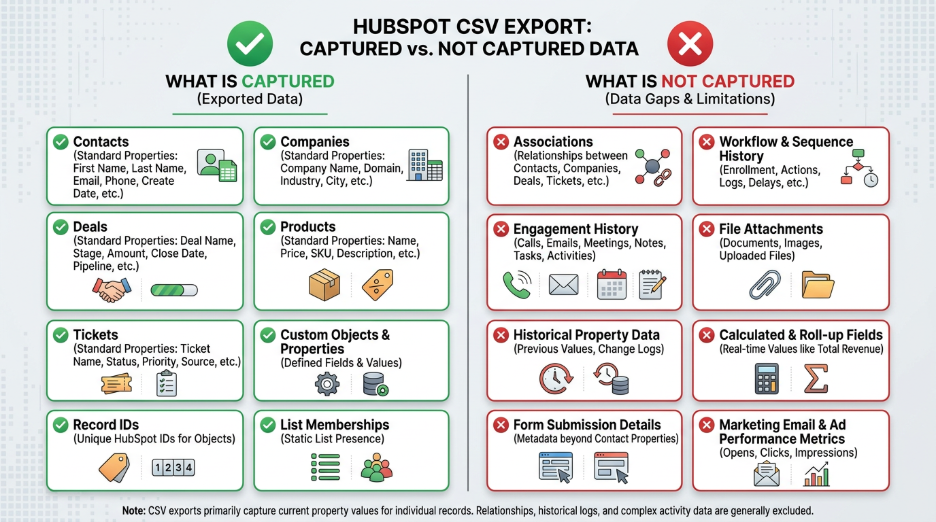
The export captures the property values for individual records, specifically the columns you select for a given object. If you export your Contacts, you get a spreadsheet of contact records with whichever fields you’ve chosen to include. That’s a meaningful piece of your data. But a meaningful piece is not the whole picture, and the gap between what’s exported and what constitutes your actual CRM environment is enormous.
What is NOT exported:
- Associations between objects. The links between contacts and their associated companies, deals, tickets, and custom objects are not included. Export your contacts and your deals as separate files, and you have no record of which contact owns which deal.
- Engagement history. Every email sent, every call logged, every meeting recorded, every note written: the entire engagement timeline that gives your sales and service teams context is absent from CSV exports.
- Workflows and automation sequences. The logic that drives your HubSpot operations, including lead nurturing sequences, deal stage automations, and lifecycle management workflows, cannot be exported as CSV files and has no native backup mechanism.
- Forms and landing pages. Your inbound marketing infrastructure, including form configurations and landing page content, is not captured.
- Pipeline stages and deal configuration. The structure of your sales process, including the stage names, probabilities, and settings that define your pipeline, is not included.
- Reports, dashboards, and templates. The analytics layer and the email or document templates your team uses daily have no export path.
- Custom property definitions. The custom fields you’ve built to capture data unique to your business, including their structure, labels, and configuration, are not exported.
The Restoration Problem Nobody Talks About
Even setting aside everything that’s missing from the export, the harder question is: what does restoration actually look like?
Imagine your HubSpot environment is compromised tomorrow. You have your CSV files. To rebuild your CRM from those files, your team would need to:
- Manually deduplicate records before re-importing, since exports don’t carry deduplication logic.
- Manually rebuild every association between contacts, companies, deals, and tickets. For a mid-sized CRM with tens of thousands of records, this alone could consume weeks of effort.
- Re-import in the correct sequence to avoid overwriting newer data with older exports.
- Recreate every workflow, form, pipeline, template, and report from scratch — from memory, documentation, or tribal knowledge.
For a large CRM environment, this isn’t a bad day. It’s a multi-week operational crisis that directly impacts revenue, customer relationships, and compliance standing.
The Structural Weaknesses of a Manual Export Strategy
Beyond the content gaps, the operational model of manual CSV exports has three structural weaknesses that make it unsuitable as a primary backup strategy:
No automation. There is no native scheduler for recurring exports. Relying on a person, or a calendar reminder, to run exports on a consistent cadence is operationally fragile. People get busy. People forget. Priorities shift. And the moment someone forgets, your backup coverage lapses.
No versioning. You cannot go back to a specific point in time. You can only go back to the date of your most recent export. If a bad automation ran three weeks ago and nobody noticed, your exports since then contain the corrupted data.
No compliance posture. Manual exports provide no audit trail, no retention policy enforcement, and no tamper-evident record of who changed what and when. For organizations operating under GDPR, HIPAA, SOC 2, or ISO 27001 requirements, a folder of CSV files is not a defensible data protection record. The SaaSAssure blog on SaaS data compliance and the deeper examination of hidden risks in cloud agreements are essential reading for any compliance-focused reader evaluating this gap.
Manual exports are a reasonable supplement to a broader strategy, never a replacement for one. Now that we’ve mapped out all three native options individually, let’s step back and look at the full picture: what they cover collectively, and what they leave completely unprotected.
Third-Party HubSpot Backup: What to Look For (and What Good Looks Like)
Once you’ve seen the complete gap inventory, the next question is straightforward: what does a genuine, enterprise-grade HubSpot backup solution actually need to do? Not what sounds good in a feature list, but what specific capabilities close the specific gaps that native tools leave open. The answer to that question doubles as an evaluation framework for any third-party solution you consider.
The Criteria for a Real HubSpot Backup Solution
A solution that genuinely addresses the gaps in native HubSpot tools must meet every one of the following criteria:
Automated, scheduled backups: no manual effort required, no risk of missed windows due to human oversight or operational distraction.
Full and incremental backups: capturethe full dataset on an initial pass and then capture ongoing changes efficiently, without requiring a full export every cycle.
Association preservation: backs up contacts, companies, deals, tickets, and custom objects with their relational links fully intact, so restoration produces a functional CRM, not a collection of flat files.
Point-in-time restore: the ability to restore your data to any specific moment, not just the last available backup. This is the capability that makes recovery from ransomware, bad automation, or insider incidents actually viable.
AES 256-bit encryption: data protected both in-flight (during transmission) and at-rest (in storage), meeting the encryption standards required by enterprise security programs and compliance frameworks.
Ransomware protection: backup data stored independently from HubSpot’s environment, with controls in place to prevent unauthorized deletion or modification of the backup itself.
Multiperson Approval (MPA): a control that requires multiple administrators to approve any destructive action, preventing phishing attacks, insider threats and costly mistakes made by individuals acting alone.
Multifactor Authentication (MFA): secures access to the backup console itself, ensuring that even if credentials are compromised, the backup environment remains protected.
Compliance-grade retention: configurable retention policies that can be aligned with GDPR, HIPAA, SOC 2, and ISO 27001 requirements, with tamper-evident audit trails.
Flexible storage: the option to use the provider’s cloud storage or bring your own S3-compatible storage for data sovereignty and residency requirements.
Fast setup: operational without requiring a dedicated IT project or extended implementation timeline.

You Now Have the Full Picture
The journey through HubSpot’s backup landscape reveals a consistent theme: there is a meaningful difference between tools that help with data management and tools that protect against data loss. HubSpot’s native CRM Backup Tool, the Recycle Bin, and manual CSV exports each have genuine value in their defined scope. The native backup gives you a periodic CRM snapshot. The Recycle Bin catches individual accidental deletions. CSV exports create a portable record of your object-level data. None of these were designed to be a disaster recovery solution, and treating them as one leaves your organization exposed to scenarios that can cause lasting operational, financial, and reputational damage.
The Shared Responsibility Model is not an abstract concept. It is a contractual reality, confirmed in HubSpot’s own Terms of Service, that places the responsibility for data recovery squarely on your organization’s shoulders. HubSpot will keep the lights on. What happens inside the platform, including the data, the workflows, the history, and the configuration, is yours to protect.
That protection means more than a weekly manual export. It means automated, scheduled backups that run without human intervention. It means association-preserving, point-in-time restore capability that can roll back your CRM to any moment before an incident occurred. It means encryption you control, storage independent of HubSpot’s environment, Multiperson Approval that prevents insider threats, and compliance-grade retention that satisfies regulators and auditors. It means an audit trail that tells the truth about who changed what and when. These are not technical luxuries for large enterprises. They are the baseline requirements of responsible data stewardship for any organization that depends on HubSpot to drive revenue.
Preventing HubSpot data loss is not a project you schedule for next quarter. The scenarios that cause data loss, including bad automations, accidental bulk deletions, ransomware, and insider mistakes, do not announce themselves in advance. The time to implement proper HubSpot data recovery capability is before you need it, not during the crisis that reveals its absence.
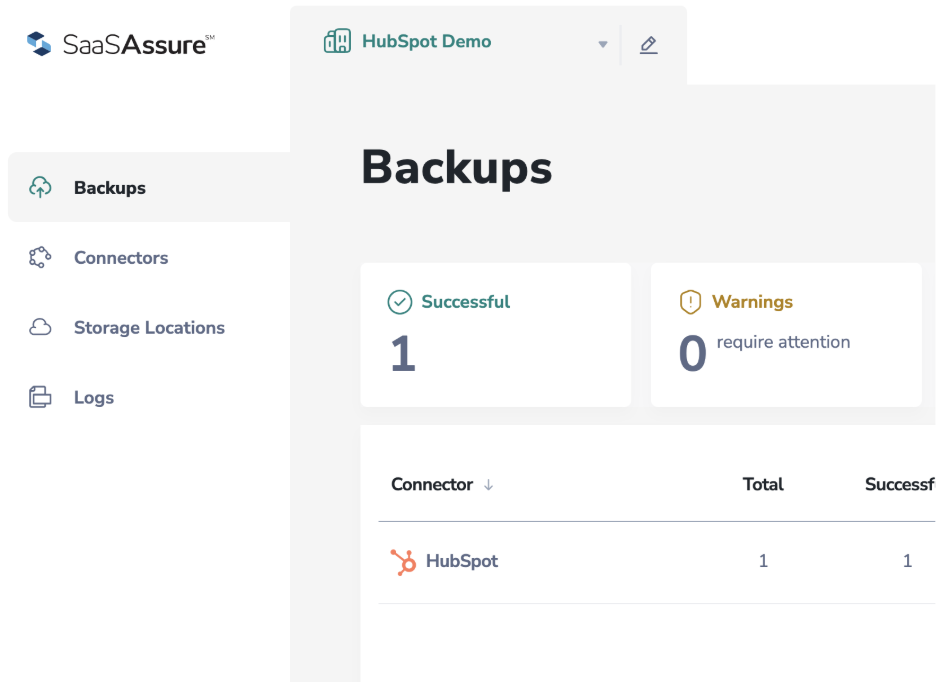
For teams looking to close that gap, it's worth exploring backup solutions built specifically for HubSpot — purpose-built tools that handle automated scheduling, point-in-time restores, and compliance-grade retention without requiring your team to build anything from scratch. If you want a deeper look, here’s an example of SaaSAssure’s HubSpot Backup tool.
Frequently Asked Questions
Does HubSpot automatically back up my CRM data?
HubSpot does not automatically back up your individual customer data. Under the Shared Responsibility Model — confirmed in HubSpot's own Terms of Service — HubSpot is responsible for keeping the platform running, not for recovering your data. HubSpot's internal system backups exist solely to restore platform infrastructure in the event of a server-level disaster, and cannot be used to recover individual records, workflows, or configurations.
How do I back up my HubSpot CRM data?
HubSpot offers one native option: the built-in Backup & Restore tool which exports CRM objects as CSV files. However, it has significant limitations — it does not include associations, engagement history, or workflow configurations. For complete data protection, a third-party automated backup solution, like SaaSAssure, is required.
What does HubSpot's native backup tool include — and what does it miss?
HubSpot's native Backup & Restore tool exports contacts, companies, deals, tickets, custom objects, products, calls, conversations, and tasks as flat CSV files. It does not include associations between records, engagement history (emails, calls, notes), workflows, forms, pipeline stages, templates, reports, or settings. Backup files expire after 14 days if not downloaded, and automated backups are only available on Enterprise-tier subscriptions. To get a proper backup of all of your HubSpot data, a third-party backup tool like SaaSAssure is the most effective solution.
Can HubSpot recover accidentally deleted data?
HubSpot's Recycle Bin retains deleted records for 90 days, after which they are permanently deleted with no recovery path — HubSpot Support cannot retrieve them. The Recycle Bin only covers individually deleted records; it offers no protection against overwritten property values, bulk deletions triggered by bad automation, or changes made by ransomware or insider threats, which are among the most common and damaging real-world data loss scenarios. If you want to recover data that the Recycle Bin cannot recover, a third-party backup tool, like SaaSAssure, is the best approach.
How do I prevent data loss in HubSpot?
Preventing HubSpot data loss requires a backup strategy that goes beyond native tools. The key elements are: automated scheduled backups that run without manual intervention, point-in-time restore capability that lets you roll back to any moment before an incident, full preservation of record associations, and storage that is independent of HubSpot's infrastructure. SaaSAssure's HubSpot backup solution provides all the necessary elements to keep your HubSpot data fully protected.
Are HubSpot workflows and automations included in backups?
No. HubSpot's native backup tools — including the Backup & Restore feature and manual CSV exports — do not capture workflows, automation sequences, forms, pipeline stages, email templates, reports, or dashboards. If this configuration layer is lost or corrupted, it must be rebuilt manually from memory or documentation. Only a purpose-built third-party backup solution, like SaaSAssure, can capture and restore HubSpot's full configuration environment.
Start Protecting Your HubSpot Data Today
Try SaaSAssure free for 14 days. No credit card required. Set up in under 10 minutes.
Not ready to commit yet? See exactly what SaaSAssure can do for your HubSpot environment before you start.
Or watch the 3-minute Power Preview to see the platform in action right now.
Topics Discussed
- SaaS Backup and Recovery
- SaaS Data Protection
- SaaS Data Management
- Managed Services
- SaaS Data Security
- Data Protection
- SaaS Backups
- SaaS Data Backup
- SaaS Cloud Backup
- Software-as-a-Service
- Business Continuity
- Cloud Backup
- HubSpot Backup
- SaaSAssure
- Secure Backup
- Shared Responsibility Model
- HubSpot Data Recovery
- CRM Data
- CRM Migration
- Data Retention
- QuickBooks Backup
- Ransomware
.png?width=352&name=image%20(56).png)